


|
|
|
-or-
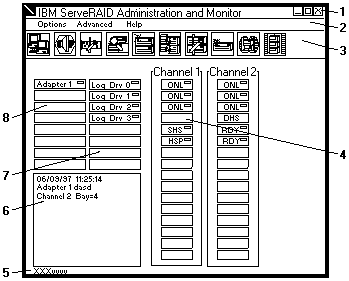
| 1. Title Bar | Displays the title of the application, along with the minimize icon, |
|---|---|
| the maximize icon, and the close icon. | |
| 2. Menu Bar | Displays the pull-down menus for all supported functions. |
| 3. Tool Bar | Displays the icons for the commonly used functions. |
| 4. Device Area | Displays information for each device connected to the physical |
| channel of the ServeRAID controller. This includes the device states | |
| and the array identifiers, if applicable. | |
| 5. Status Bar | Displays help for the area where the cursor is currently pointing. |
| The date and time are also displayed. | |
| 6. Status Window | Displays messages regarding the operational status of each |
| ServeRAID controller. | |
| 7. Logical Drive Area | Displays the number of logical drives that you created and the |
| status of each logical drive. | |
| 8. Adapter Area | Displays the number of ServeRAID controllers installed in the |
| server and the status of each ServeRAID controller. |
Options Pull-Down Menu: This section provides
information about the following three choices available
from the Options pull-down menu on the main screen of
the Administration and Monitoring utility:

You can use the Network Settings dialog box to select and connect to servers in the
network that have an IBM ServeRAID controller installed.
To select and connect to a server:
icon on the tool bar or select
A screen similar to the following appears.
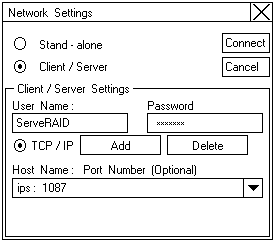
Note: If the server was started on any port other than the default (1087), type in a colon and the correct port number for the configuration (for example: SreveRAID:1088) after the Hostname or TCP/IP Address that you just entered.

Please see the LEGAL - Trademark notice.
Feel free - send a  for any BUG on this page found - Thank you.